

Where can I request new access?
You’ve got some choices!- Do you want to explore all the access available to you? Use the Requests page.
- Do you know what you need and want to request it quickly? Use the Request access page.
- Do you want to make a request without leaving your Slack or Microsoft Teams workspace? Use Slack or MS Teams.
- Do you prefer to request access from the command line? Use the ConductorOne CLI.
Why don’t I see all the apps my company uses?
For both simplicity and security, the list of apps and permissions you can request is limited. If you’re in the Accounting department, you probably don’t need access to the tools the Product Design team uses, or vice versa. The ConductorOne admins at your company set up groups of apps and permissions called access profiles. Some access profiles are visible to everyone, but others are just for certain departments or job types. The access profiles you have access to determine which apps you can see and ask for. The admins also have the option to let you ask for all the apps in an access profile in a single request. If these are available to you, you’ll find them on the Profiles tab.Can I request access for others?
Most users can only request their own access, but there are a few exceptions:- Managers can request access for the members of their team.
- ConductorOne users with the Access Request Helpdesk, Access Request Admin, or Super Administrator roles can request access for any active user.
Request from the Requests page
To browse the access that’s assigned to you or available for you to request, go to the Requests page.Request an app or permission
On the Requests page, you’ll find a personalized App catalog tab containing all the apps and resources that are either currently assigned to you or available for you to request.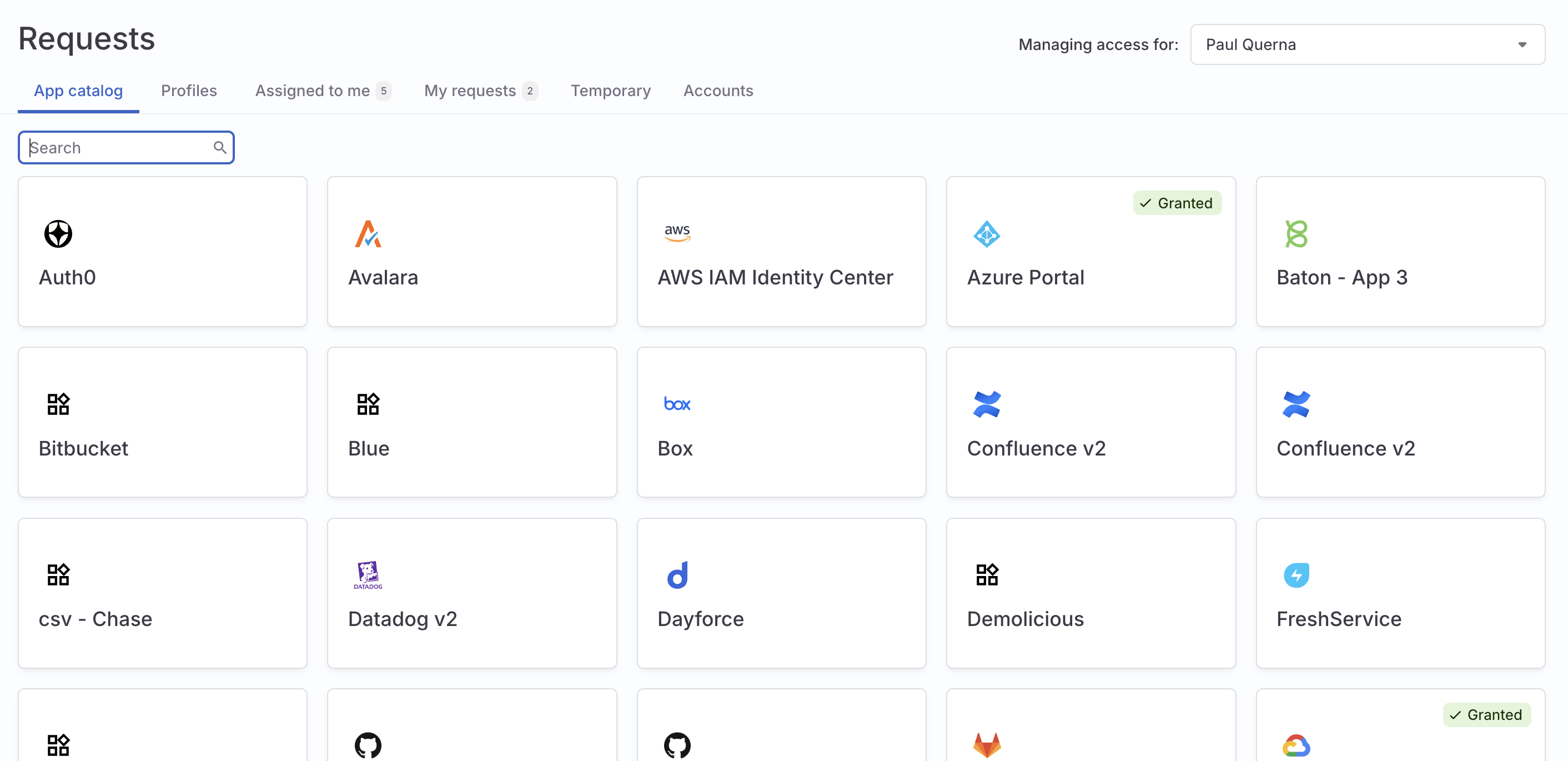
1
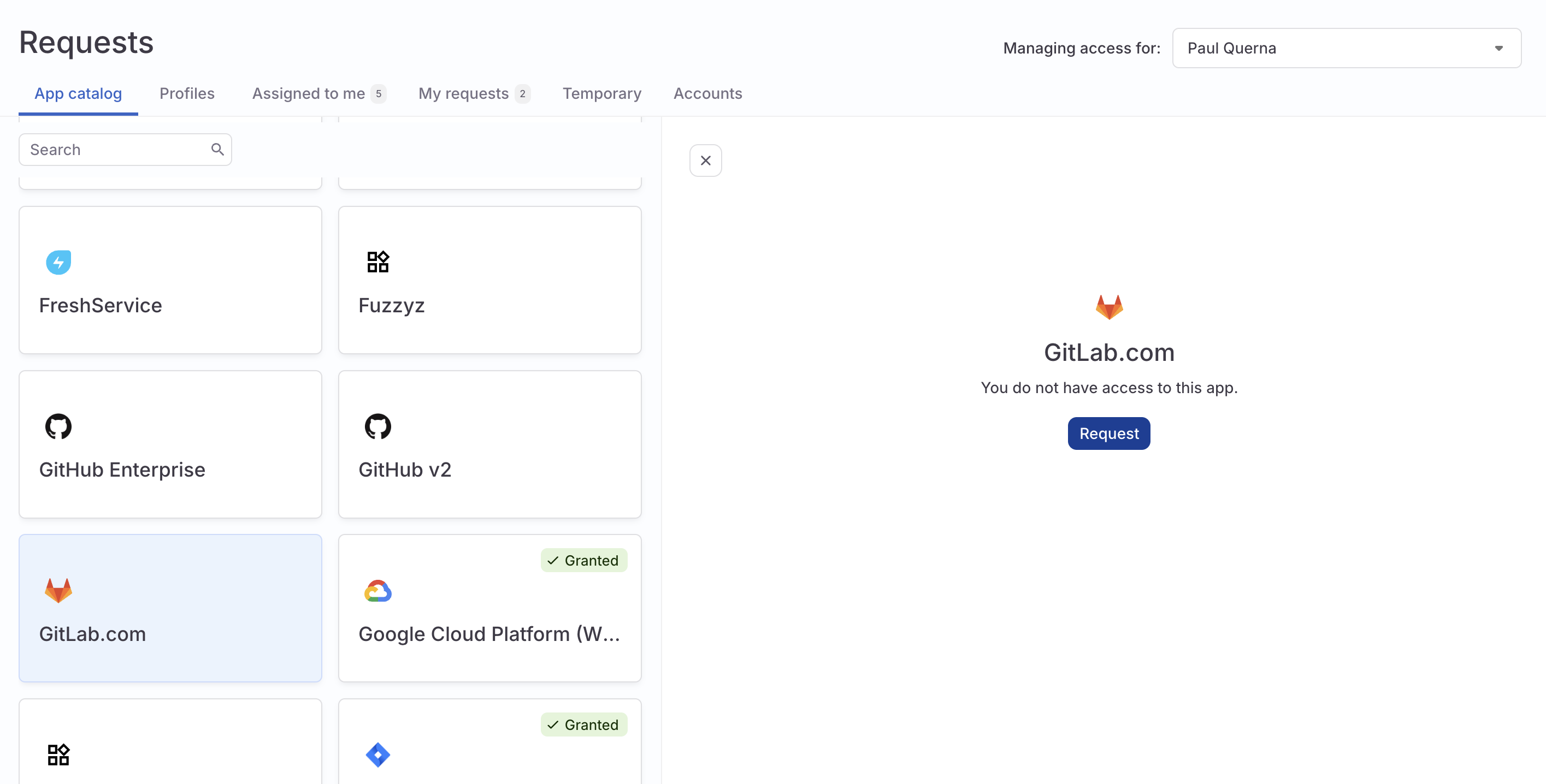
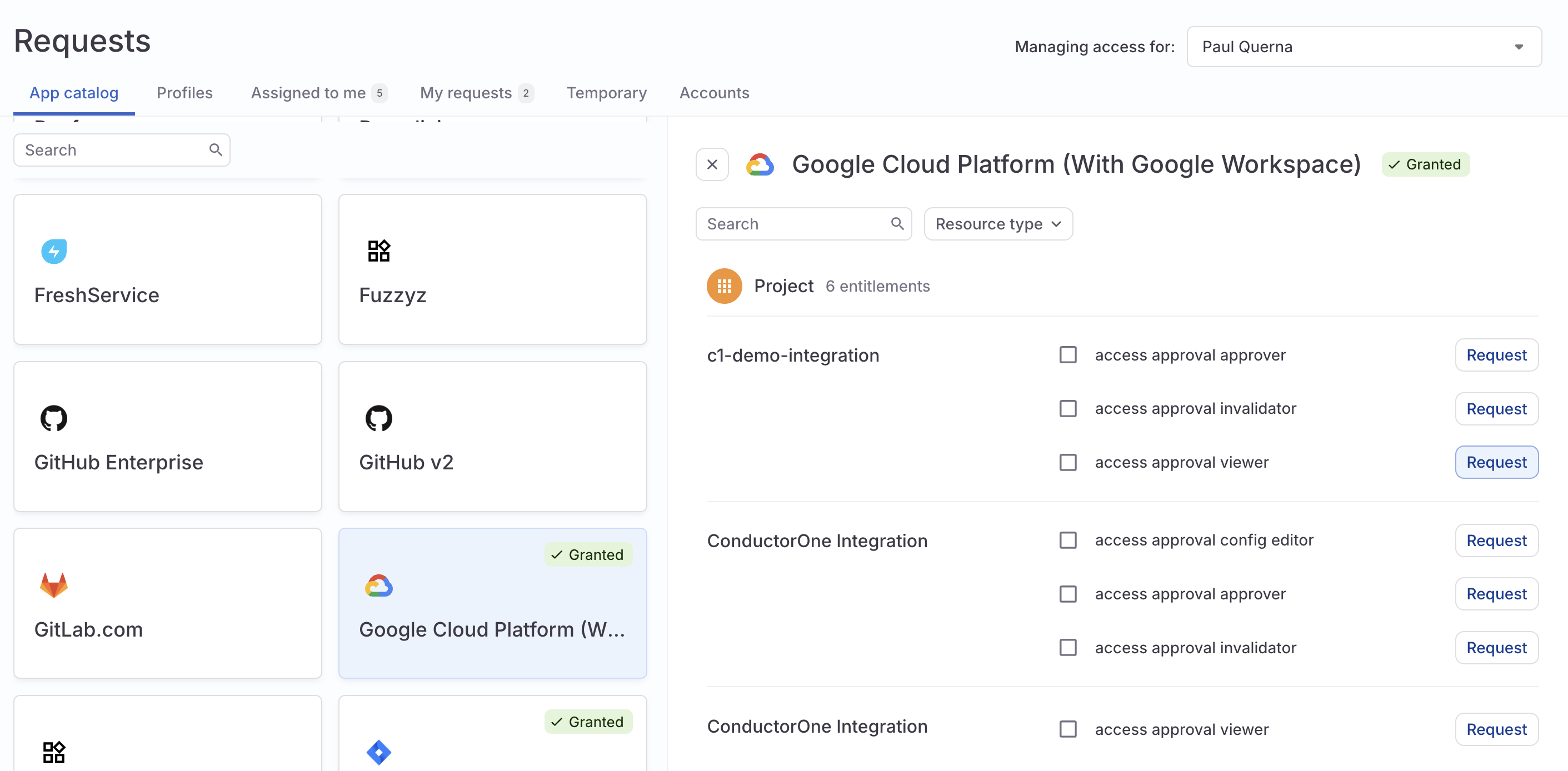
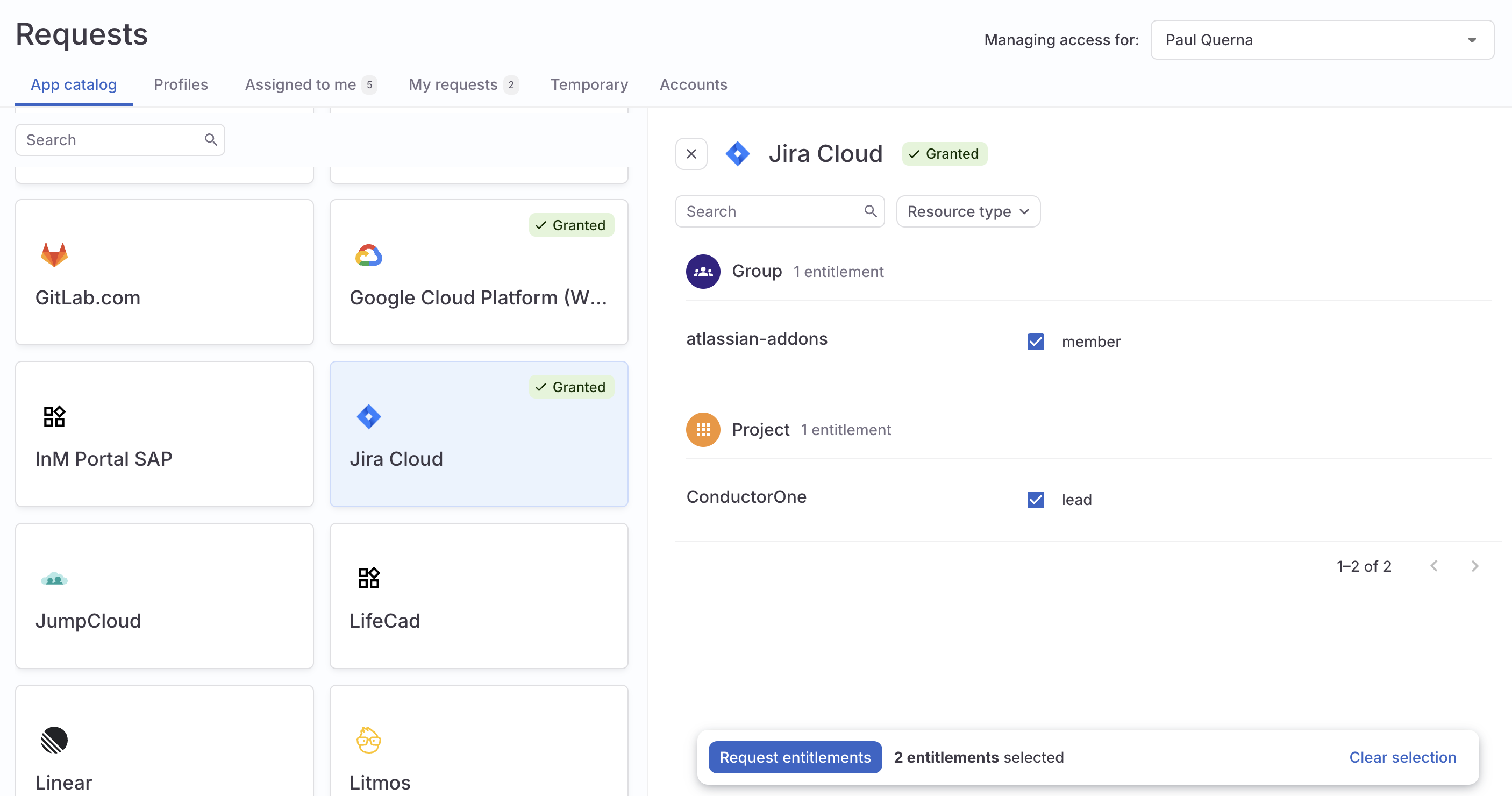
Click an app and select what you want to request:
-
Access to an application: Click Request.
-
A single permission: Find the permission you need and click Request.
-
Multiple permissions: Use the checkboxes to build the list of permissions you’re requesting, then click Request entitlements at the bottom of the screen.
2
Set how long you need the access for. Some sensitive or expensive resources can only be requested for a limited time. Choose from one of the pre-set options, or enter a custom timeframe by selecting Custom.When you’re granted access for a limited time, ConductorOne will send you a reminder that the access is expiring three business days before the grant ends. (If the access is granted for three days or less, you won’t get this reminder.) Expiring access is also shown in digest emails.
3
Tell the reviewer why you’re requesting this access. This helps them make their decision, so be specific.
4
If the emergency access toggle is present: The access you’re requesting is available for emergency access requests. If you’re requesting this access to address an emergency (as defined by your company’s critical incident or emergency procedures), click to turn on Emergency access.
5
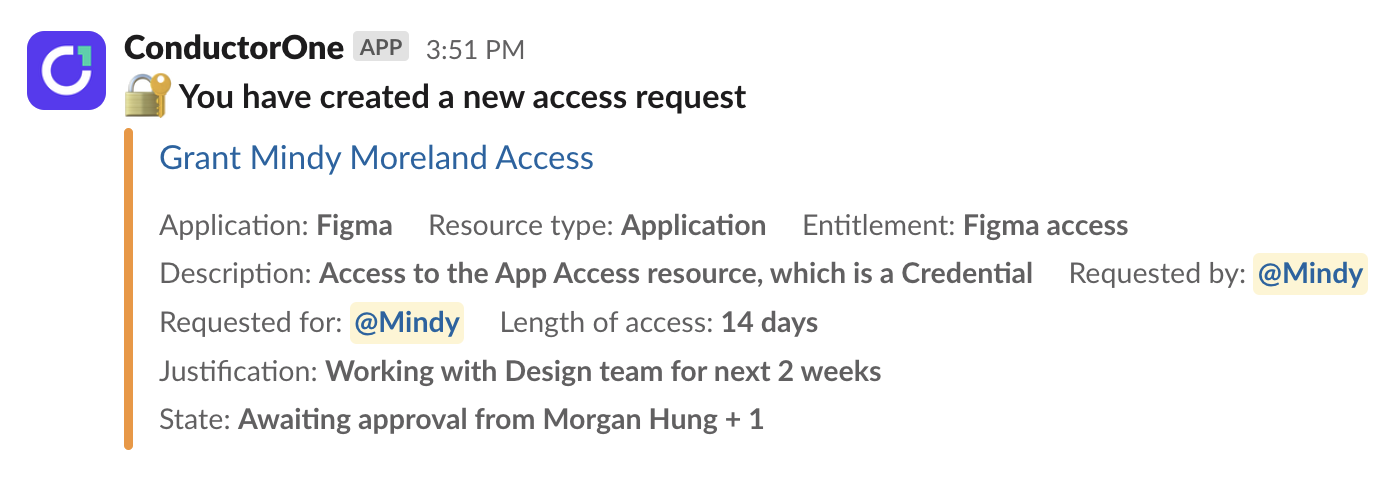
Click Submit request. A drawer pops open to shown you the details of the newly created request task.You can always refer to this task later on the My requests list on the Requests page. You can view the status of the request, leave a comment, and even cancel it if needed.
Request a profile
To request an entire access profile’s worth of permissions, on the Profiles tab:1
Click the profile you want to request.
2
Click Request at the top of the page.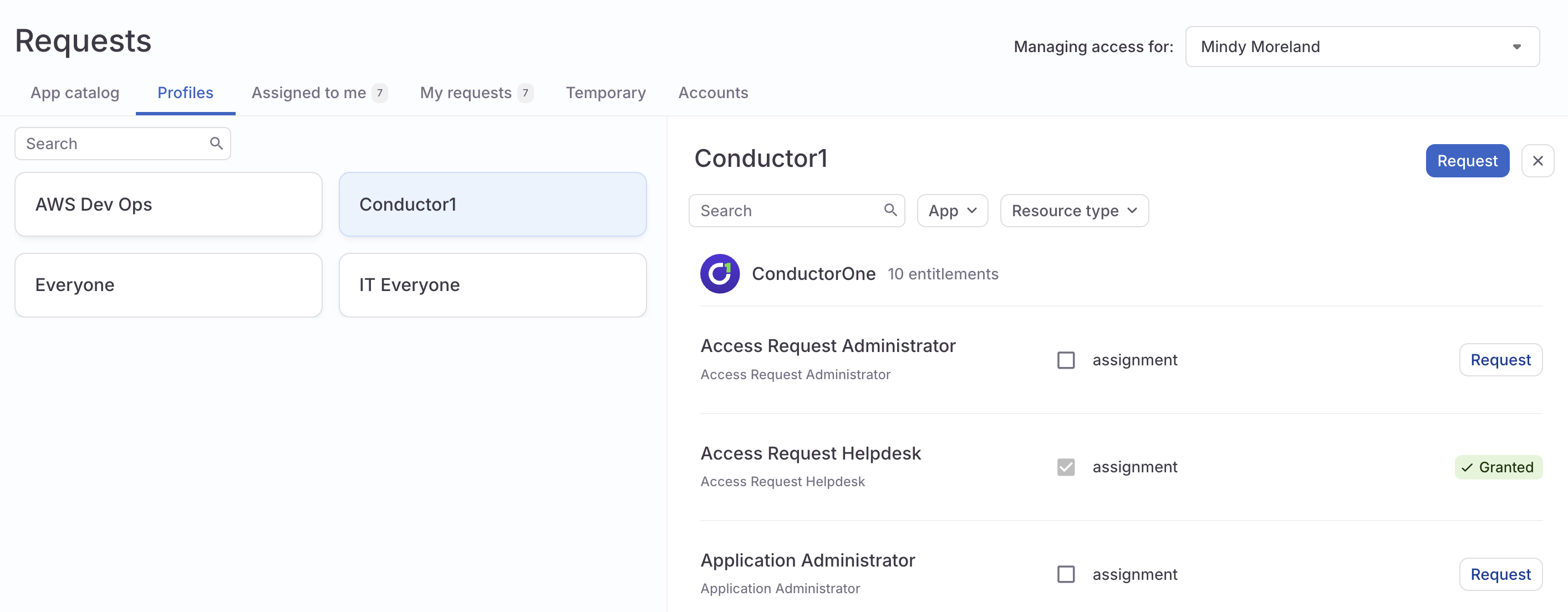
3
Set how long you need the access for. Some sensitive or expensive access profiles can only be requested for a limited time. Choose from one of the pre-set options, or enter a custom timeframe by selecting Custom.When you’re granted access for a limited time, ConductorOne will send you a reminder that the access is expiring three business days before the grant ends. (If the access is granted for three days or less, you won’t get this reminder.) Expiring access is also shown in digest emails.
4
Tell the reviewer why you’re requesting this profile. This helps them make their decision, so be specific.
5
Click Enroll.
Request on the Request access page
If you already know what access you need, use the Request access page to quickly submit a request.Request a profile
1
In ConductorOne, at the top of the page, click + Request access and select the Access profiles tab.
2
Select the profile you want to request.
3
Set how long you need the access for. Some sensitive or expensive profiles can only be requested for a limited time. Choose from one of the pre-set options, or enter a custom timeframe by selecting Custom.When you’re granted access for a limited time, ConductorOne will send you a reminder that the access is expiring three business days before the grant ends. (If the access is granted for three days or less, you won’t get this reminder.) Expiring access is also shown in digest emails.
4
Tell the reviewer why you’re requesting this profile. This helps them make their decision, so be specific.
5
Click Request profile.
Request an app or permission
1
In ConductorOne, at the top of the page, click + Request access and select the Apps tab.
2
Select an application from the Which app? dropdown, which shows all the apps that are available for you to request.
3
Select the specific entitlements you need. Based on the type of access available to you, your options might include: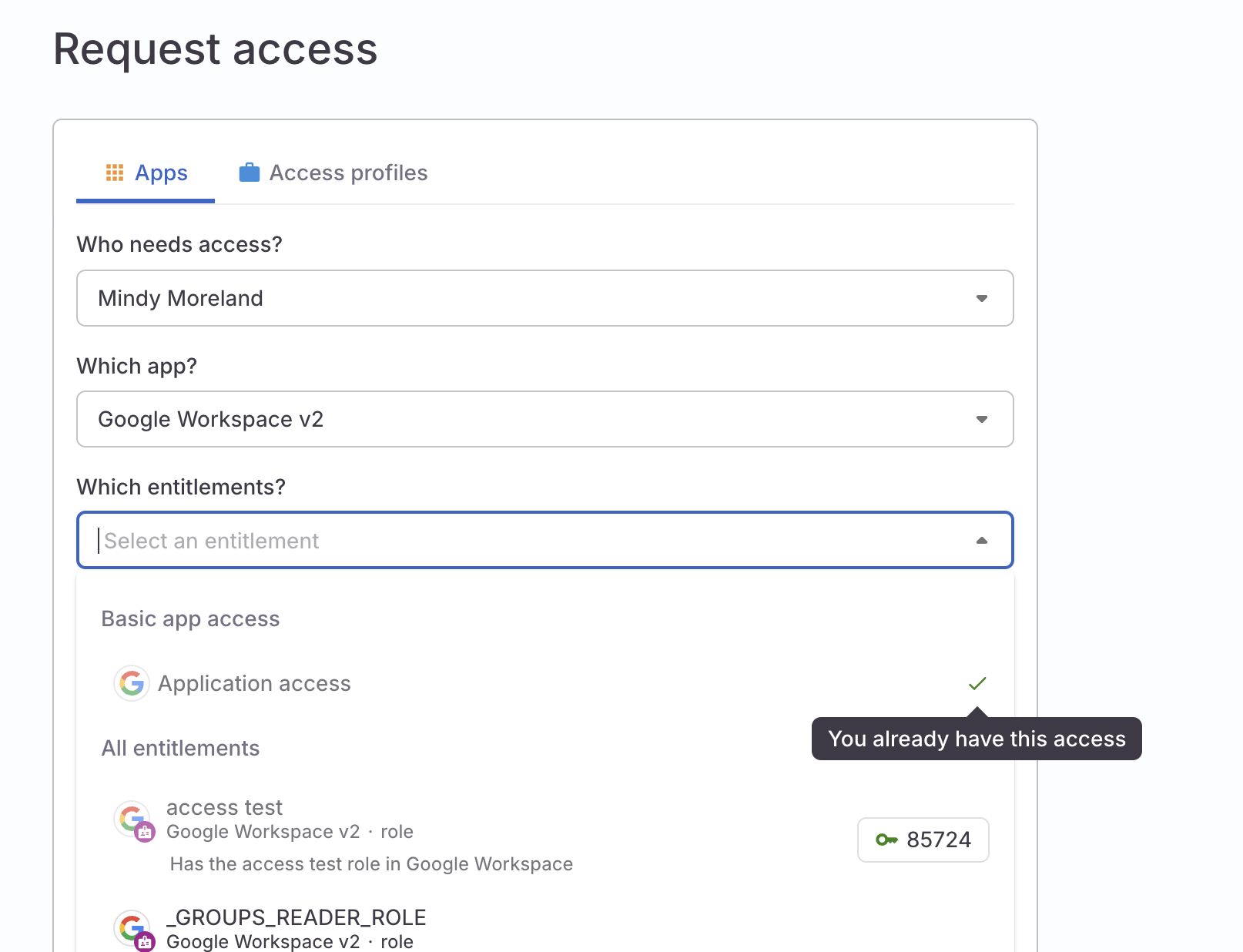
- Basic app access: Choose this option if you’re looking for a new account on an app you’re using for the first time.
- All entitlements: Select from this list if you have an account on the app but need access to something more specialized. You can select more than one resource from the same application.
4
Set how long you need the access for. Some sensitive or expensive resources can only be requested for a limited time. Choose from one of the pre-set options, or enter a custom timeframe by selecting Custom.When you’re granted access for a limited time, ConductorOne will send you a reminder that the access is expiring three business days before the grant ends. (If the access is granted for three days or less, you won’t get this reminder.) Expiring access is also shown in digest emails.
5
Tell the reviewer why you’re requesting this access. This helps them make their decision, so be specific.
6
If the emergency access toggle is present: The access you’re requesting is available for emergency access requests. If you’re requesting this access to address an emergency (as defined by your company’s critical incident or emergency procedures), click to turn on Emergency access.Emergency access requests bypass the normal review procedure and use a special expedited process to grant requests to critical access in emergency situations. Your company’s IT procedures will define when it’s appropriate to request emergency access.
7
Click Submit request. A drawer pops open to shown you the details of the newly created request task.You can always refer to this task later on the My requests list on the Requests page. You can view the status of the request, leave a comment, and even cancel it if needed.
Request using the Slack app
If your company uses Slack and an admin has set up the ConductorOne Slack app, you can request new access and receive notifications directly from the platform.Add the ConductorOne Slack app to your account
1
In Slack, navigate to the Apps section of the navigation bar.
2
Click Add apps and search for ConductorOne.
3
Click the ConductorOne app and follow the prompts to add it to your Slack account.
Create an access request
1
In any Slack channel, type 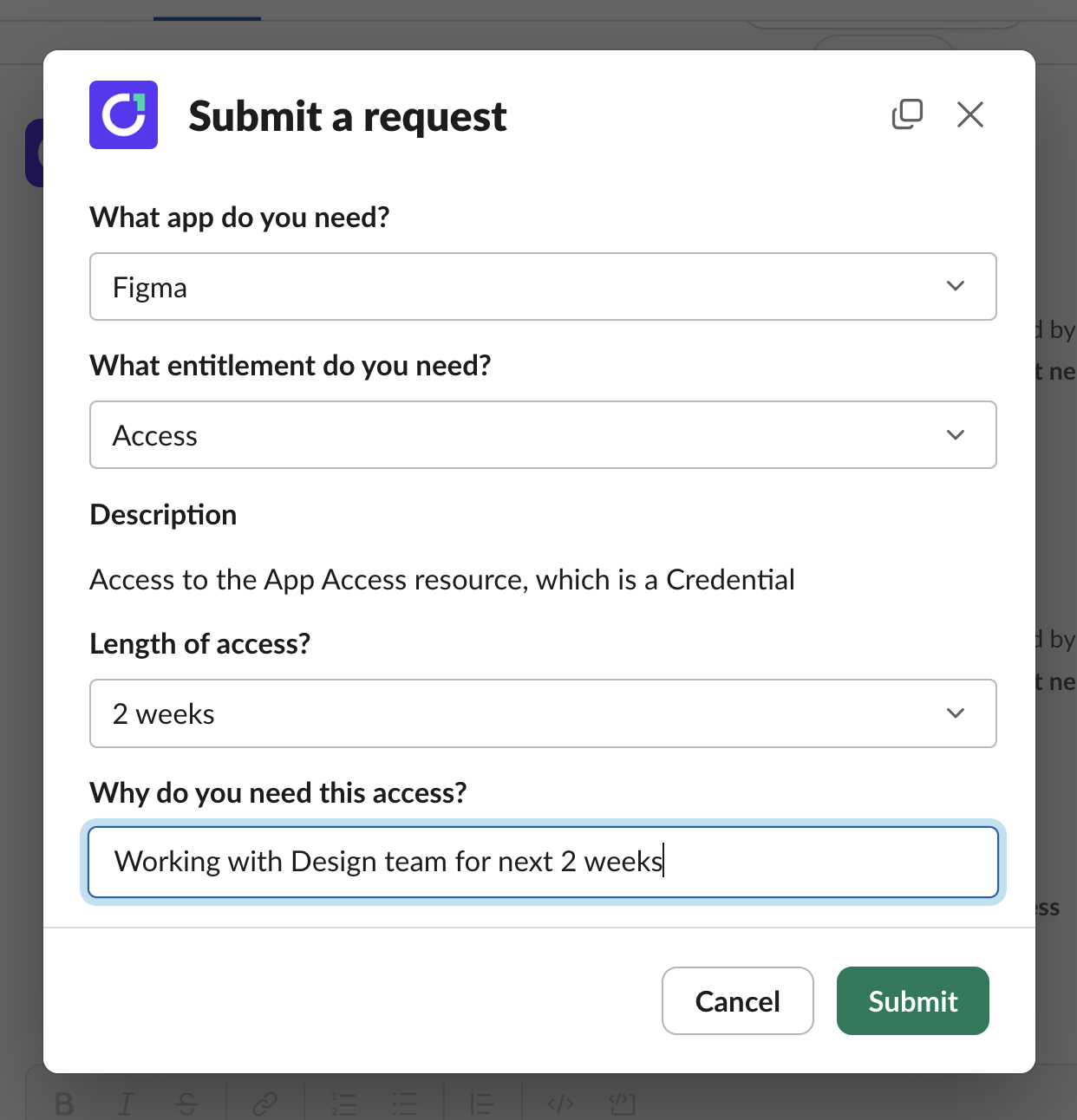
/c1 request.Alternatively, navigate to the ConductorOne Slack app and click Home > Request Access.The Submit a Request form opens.2
Select an application from the Which app do you need? dropdown, which shows all the apps that are available for you to request.
3
Select the specific entitlement (permission) you need. If you’re looking for a new account on an app you’re using for the first time, choose Access.
4
If asked, specify how long you need the access for. Some sensitive or expensive resources have limited duration requirements, others can be requested indefinitely (if you’re requesting one of these, you won’t be asked about a duration).When you’re granted access for a limited time, ConductorOne will send you a reminder that the access is expiring three business days before the grant ends. (If the access is granted for three days or less, you won’t get this reminder.) Expiring access is also shown in digest emails.
5
Tell the reviewer why you’re requesting this access. This helps them make their decision, and becomes a note in the audit log of all the access granted to all the company’s employees.
6
Click Submit.
Request using the Microsoft Teams app
If your company uses Microsoft Teams and an admin has set up the ConductorOne Slack app, you can request new access and receive notifications directly from the platform.Create an access request
1
In Microsoft Teams, click the + (Actions and apps) icon and select the ConductorOne app.
2
Select an application from the Which app do you need? dropdown, which shows all the apps that are available for you to request.
3
Select the specific entitlement (permission) you need. If you’re looking for a new account on an app you’re using for the first time, choose Access.
4
If asked, specify how long you need the access for. Some sensitive or expensive resources have limited duration requirements, others can be requested indefinitely (if you’re requesting one of these, you won’t be asked about a duration).When you’re granted access for a limited time, ConductorOne will send you a reminder that the access is expiring three business days before the grant ends. (If the access is granted for three days or less, you won’t get this reminder.) Expiring access is also shown in digest emails.
5
Tell the reviewer why you’re requesting this access. This helps them make their decision, and becomes a note in the audit log of all the access granted to all the company’s employees.
6
Click Submit.