

Availability
ConductorOne only integrates with the Salesforce editions with API access: Salesforce Enterprise, Unlimited, Developer, and Performance editions. You cannot use this connector successfully with Group or Essentials editions, or with Professional edition without an API add-on. Learn more about which Salesforce editions support API access in the Salesforce documentation.Capabilities
- Sync user identities from Salesforce to ConductorOne
-
Resources supported:
- Groups
- Roles
- Permission sets
Add a new Salesforce connector
1
In ConductorOne, navigate to Admin > Connectors and click Add connector.
2
Search for Salesforce and click Add.
3
Choose how to set up the new Salesforce connector:
- Add the connector to a currently unmanaged app (select from the list of apps that were discovered in your identity, SSO, or federation provider that aren’t yet managed with ConductorOne)
- Add the connector to a managed app (select from the list of existing managed apps)
- Create a new managed app
4
Set the owner for this connector. You can manage the connector yourself, or choose someone else from the list of ConductorOne users. Setting multiple owners is allowed.
5
Click Next.
Next steps
- If you are the connector owner, proceed to Configure your Salesforce connector for instructions on integrating Salesforce with ConductorOne.
- If someone else is the connector owner, ConductorOne will notify them by email that their help is needed to complete the setup process.
Configure your Salesforce connector
Step 0: Enable API access for your Salesforce user
Before you begin, make sure that the Salesforce user who will set up the integration with ConductorOne has a profile that includes the API Enabled permission. This permission is included by default in the Standard User and System Administrator profiles. To edit a different profile so that it includes the API Enabled permission:1
Log into Salesforce as an Administrator.
2
Click the gear icon and select Setup.
3
Search for “profiles” and select Profiles from the search results.
4
In the User Profiles list, locate the user profile you want to add the permission to and click Edit.
5
Find the Administrative Permissions section of the page and click to select API Enabled.
6
Click Save.
Step 1: Locate your Salesforce domain
1
Log into the Salesforce admin panel and copy the URL from your browser. We’ll use this in Step 2.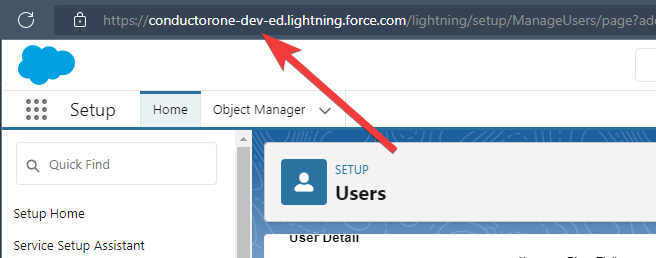
Step 2: Set up the Salesforce connector
1
In ConductorOne, navigate to the Salesforce connector by either:
- Clicking the Set up connector link in the email you received about configuring the connector.
- Navigate to Connectors > Salesforce (if there is more than one Salesforce listed, click the one with your name listed as owner and the status Not connected).
2
Find the Settings area of the page and click Edit.
3
In the Domain field, enter the Salesforce domain you looked up in Step 1.
4
Optional. Check the box to tell ConductorOne to use Salesforce usernames as the email addresses for your organization’s accounts. This option is especially helpful if your organization uses multiple service accounts that all share a
noreply@salesforce.com email address.5
Click Save.
Step 3: Log in with OAuth
1
Click Login with OAuth.
2
Log in and authorize ConductorOne with your Salesforce instance.
3
You will then be redirected back to the Salesforce setup page in ConductorOne, where you’ll see an authorization message.
4
The connector’s label changes to Syncing, followed by Connected. You can view the logs to ensure that information is syncing.