

Capabilities
| Resource | Sync | Provision |
|---|---|---|
| Accounts | ||
| Projects | ||
| Roles | ||
| Organizations | ||
| Secrets |
Gather Google Cloud Platform credentials
Configuring the connector requires you to pass in credentials generated in Google Cloud Platform. Gather these credentials before you move on.Create a new project
1
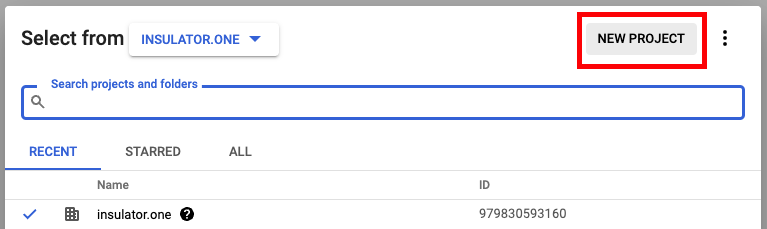
In the Google Cloud console, click the project select dropdown, then click NEW PROJECT.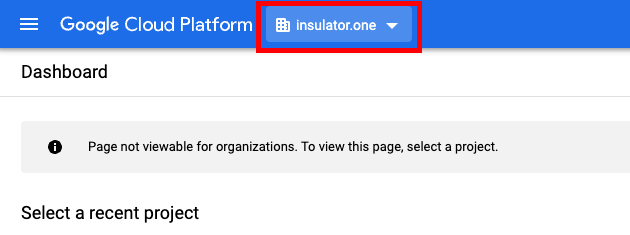
2
Create a new project for your organization: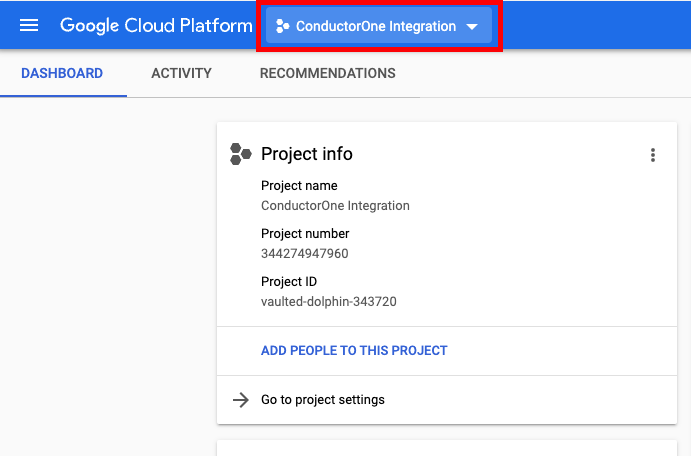
- Project Name: Choose a name such as “ConductorOne Integration”
- Organization/Location: Choose any organization and location
Enable APIs
1
In the navigation menu, navigate to > APIs & Services > Library.
2
Search for and select the following APIs: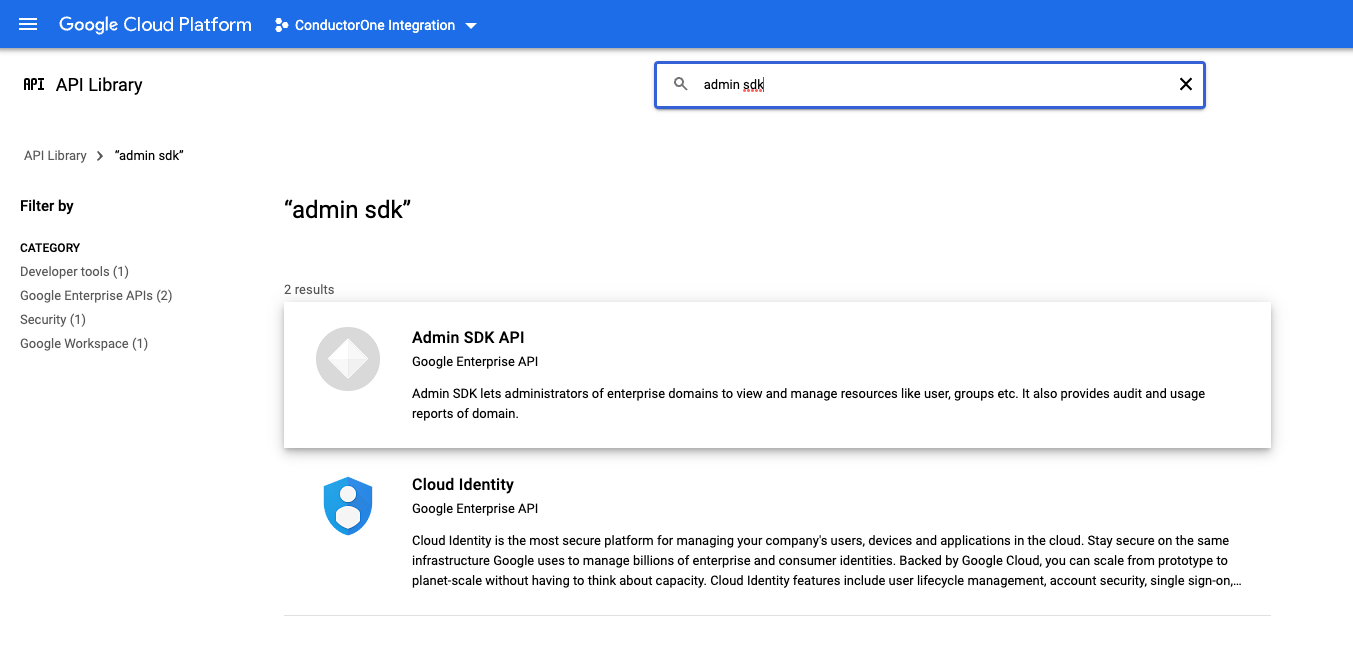
- Identity and Access Management (IAM) API
- Cloud Resource Manager API
- Cloud Asset API
- Admin SDK API
3
Click Enable.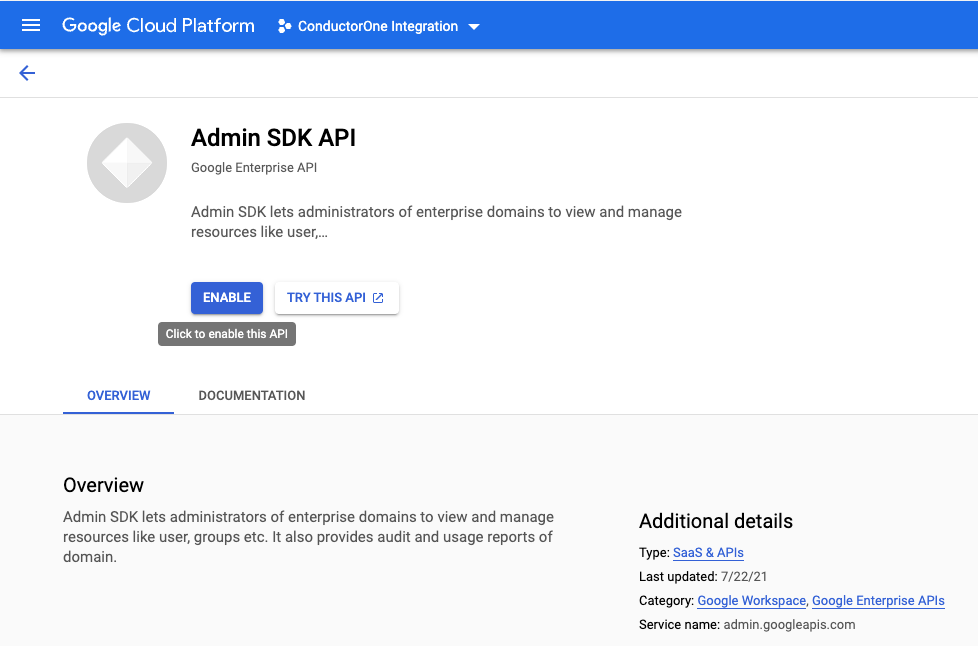
Create a service account
1
In the navigation menu, navigate to > APIs & Services > Credentials.
2
Select CREATE CREDENTIALS > Service Account.
3
Under Service account details, fill in the following:
- Service account name: ConductorOne Integration
- Service account description: for example, “Service account for ConductorOne Google Cloud Platform Integration”
4
Click CREATE AND CONTINUE.
5
Under Grant this service account access to a project, grant the appropriate permission level:You’ll need these permissions to give ConductorOne READ/WRITE access (for syncing access data and provisioning access):
- Viewer to run access reviews on your Google Cloud Platform users
- Editor to provision access via ConductorOne and run access reviews
6
Leave Grant users access to this service account blank.
7
Click DONE.
Grant your service account access to your organization
1
Navigate to your organization by selecting your organization from the dropdown.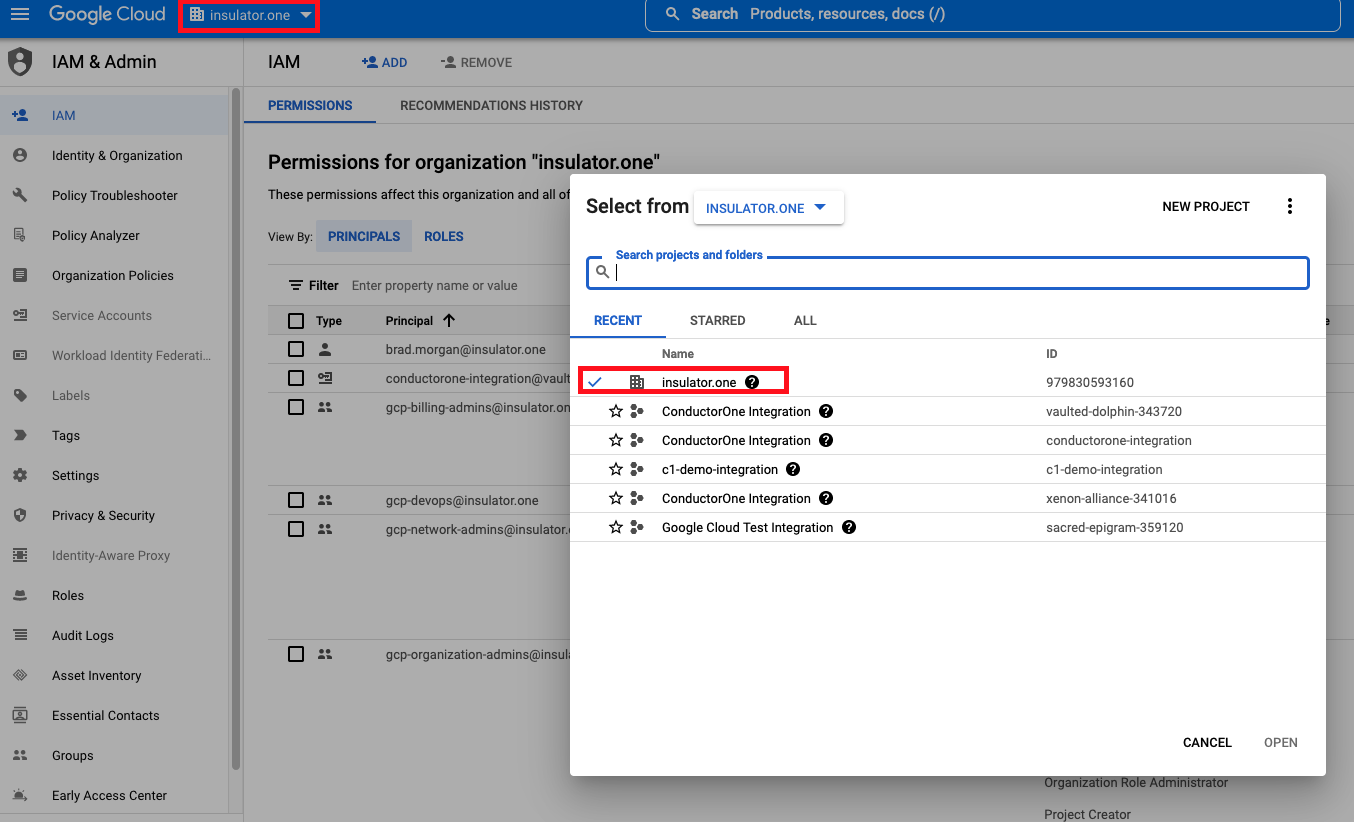
2
Navigate to the IAM tab from the left nav and click ADD button located at the top of the page.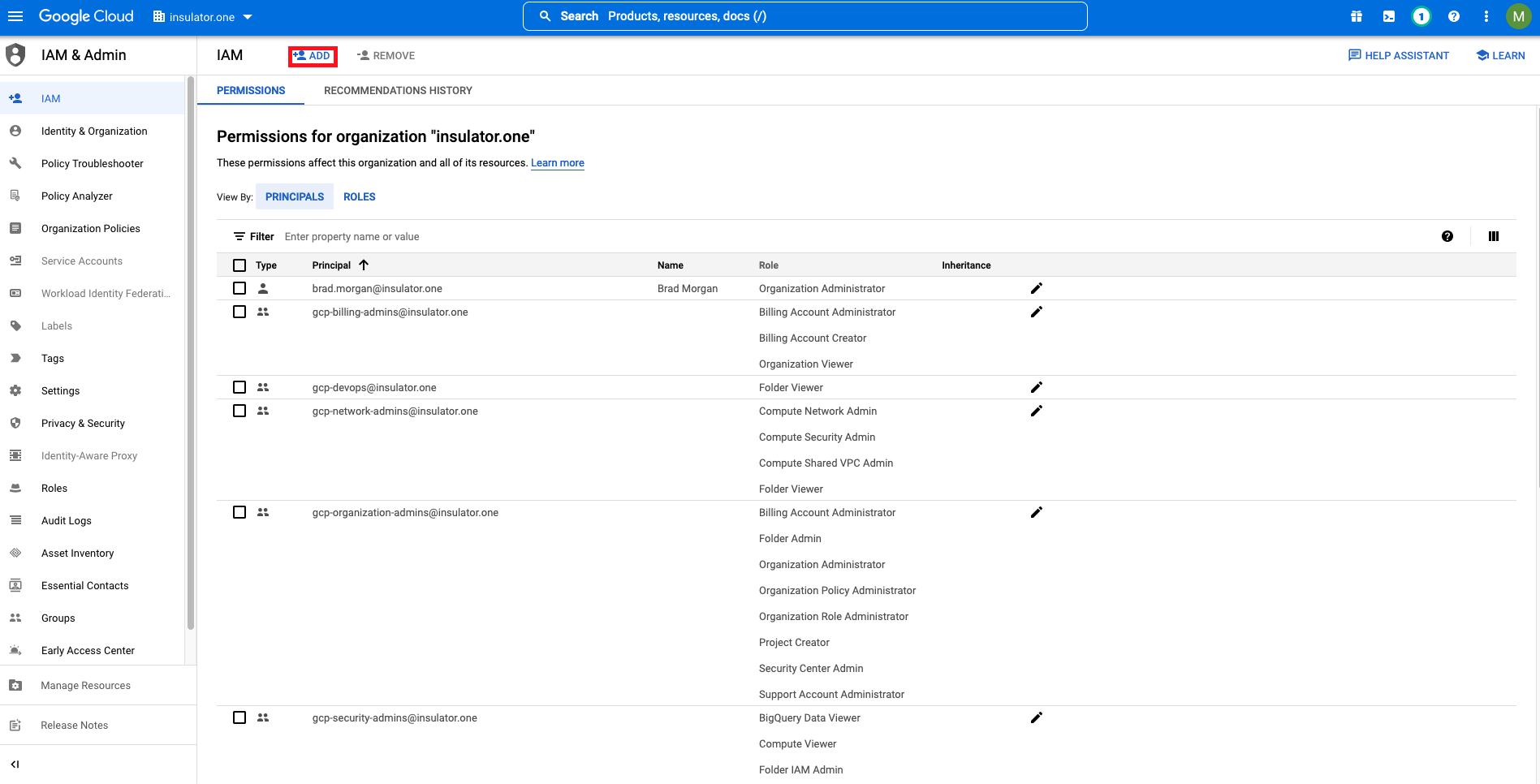
3
For the principal, use the service account ID for the service account you created earlier.
4
Select the appropriate roles:
- Organization Viewer and Viewer to give ConductorOne READ access
- Organization Administrator and Editor to give ConductorOne READ/WRITE access
5
Click Save.
Optional: Enable API token information syncing
If you want to sync information about the API tokens and service account keys created in your Google Cloud Platform instance, follow the instructions below. Otherwise, skip ahead to the Get credentials section.1
In the ConductorOne project, search for “API keys” and enable it.
2
Next, grant the API Keys Viewer Role to the service account you created for ConductorOne. Navigate to IAM & Admin > IAM.
3
On the IAM page, find your Service Account in the list on the Principals tab.
4
Click the icon to edit the Service Account, then click Add another role.
5
Search for and select API Keys Viewer.
6
Click Save.
Get credentials
1
Navigate back to APIs & Services > Credentials and select the service account you just created.
2
Click the service account’s email address.
3
On the Service Account Details Page, click KEYS.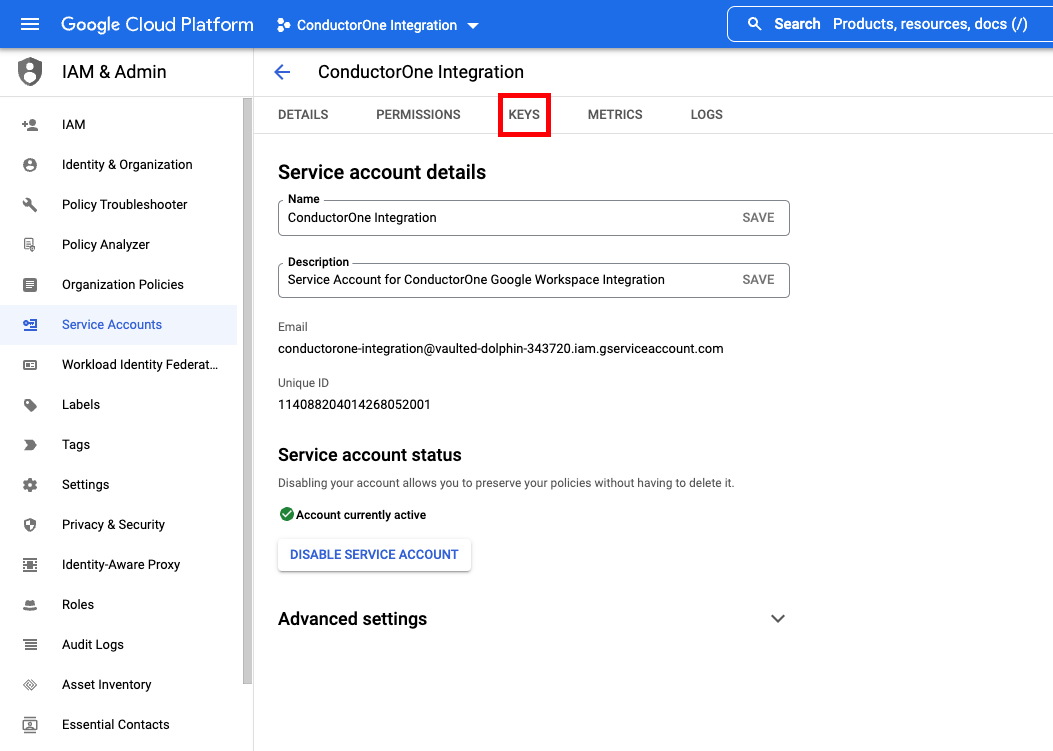
4
Click ADD KEY > Create new key.
5
Choose JSON and click CREATE. The new key is created and downloaded to your computer.
6
Keep the downloaded file safe, you’ll use it to set up the connector.
Configure the Google Cloud Platform connector
- Cloud-hosted
- Self-hosted
Follow these instructions to use a built-in, no-code connector hosted by ConductorOne.That’s it! Your Google Cloud Platform connector is now pulling access data into ConductorOne.
1
In ConductorOne, navigate to Admin > Connectors and click Add connector.
2
Search for Google Cloud Platform and click Add.
3
Choose how to set up the new Google Cloud Platform connector:
- Add the connector to a currently unmanaged app (select from the list of apps that were discovered in your identity, SSO, or federation provider that aren’t yet managed with ConductorOne)
- Add the connector to a managed app (select from the list of existing managed apps)
- Create a new managed app
4
Set the owner for this connector. You can manage the connector yourself, or choose someone else from the list of ConductorOne users. Setting multiple owners is allowed.If you choose someone else, ConductorOne will notify the new connector owner by email that their help is needed to complete the setup process.
5
Click Next.
6
Find the Settings area of the page and click Edit.
7
Upload the JSON file in the Credentials (JSON) field.
8
Click Save.
9
The connector’s label changes to Syncing, followed by Connected. You can view the logs to ensure that information is syncing.