

Availability
An updated version of this integration is available. This version of the connector is no longer available for new installation. If you’re integrating GitHub for the first time, use the updated version.Capabilities
- Sync user identities from GitHub to ConductorOne
-
Resources supported:
- Repositories
- Teams (including nested teams)
- Orgs
-
Provisioning supported:
- Team membership
Requirements
Connecting to your GitHub environment, you will need:- Super Administrator role in ConductorOne
- Org Owner access in GitHub
Set up the GitHub integration
1
In ConductorOne, navigate to Admin > Connectors > GitHub.
2
If this is your first GitHub integration, the integration form opens automatically. Otherwise, click Add connector.
3
Choose whether to add the new GitHub connector as a data source to an existing application (and select the app of your choice) or to create a new application.
4
Set the owner for this connector. You can manage the connector yourself, or choose someone else from the list of ConductorOne users. Setting multiple owners is allowed.
5
Click Next.
Next steps
- If you are the integration owner, proceed to Integrate your GitHub instance [chosen method] for instructions on integrating GitHub with ConductorOne.
- If someone else is the integration owner, ConductorOne will notify them by email that their help is needed to complete the setup process.
Option 1: Integrate your GitHub instance using a personal access token (classic)
Follow these instructions to integrate your GitHub instance by using a GitHub personal access token (classic).Step 1: Create a GitHub personal access token (classic)
1
In GitHub, click your profile photo, then click Settings.
2
In the left sidebar, select Developer settings.
3
Click Personal access tokens > Tokens (classic).
4
Click Generate new token > Generate new token (classic).
5
Name your token (for example, ConductorOne Integration). Optionally, add a token expiration date.
6
Select the following Scopes:
- repo - select all
- admin:org - select all if using ConductorOne for GitHub provisioning (see the note below), or read::org otherwise
- user - select all
7
Click Generate token. Copy and save the new token. We’ll use it in Step 3.
Step 2: Locate your GitHub organization name
1
In GitHub, click your profile photo, then click Organizations.
2
Make a note of your Organization name. We’ll use it in Step 3.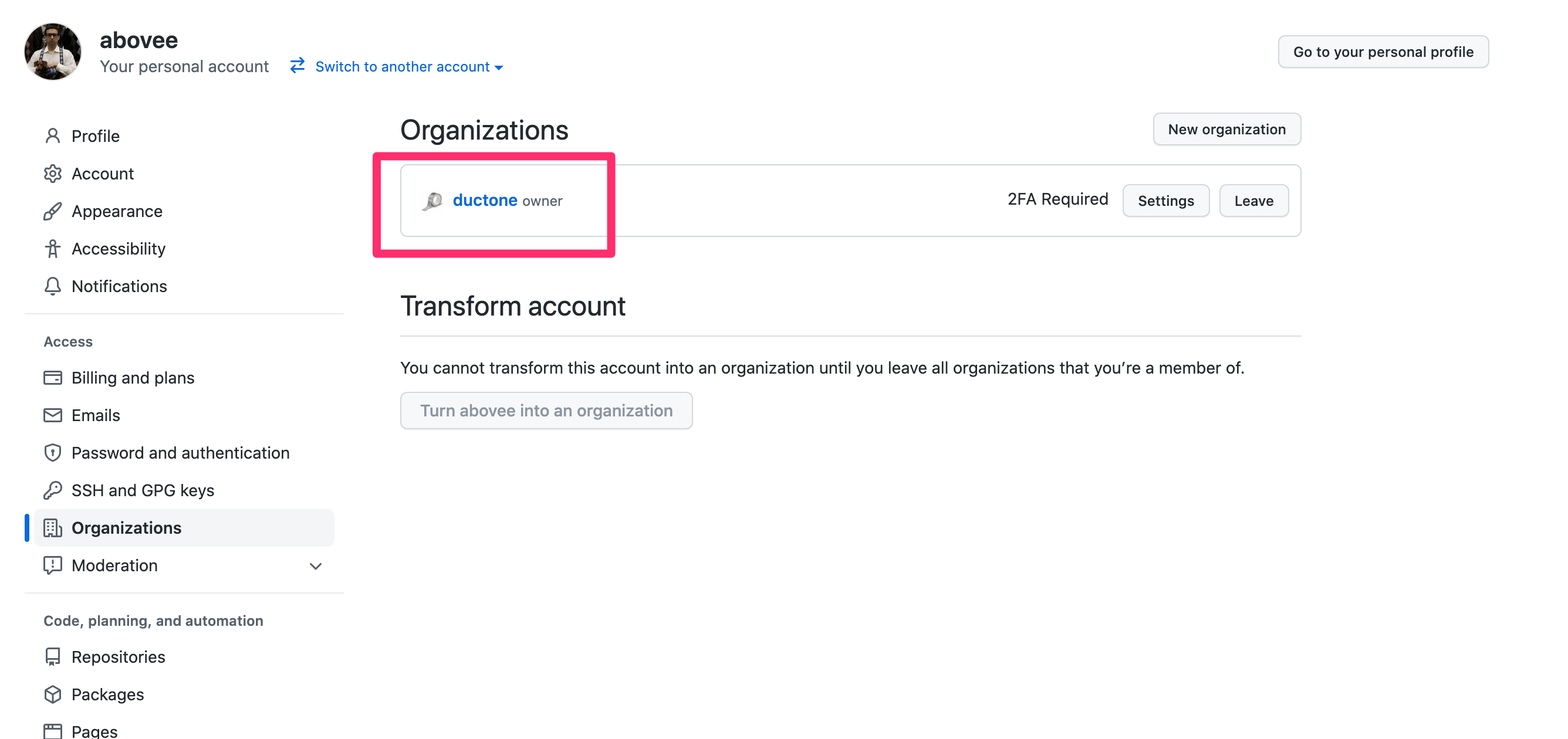
Step 3: Add your GitHub credentials to ConductorOne
1
In ConductorOne, navigate to Admin > Connectors > GitHub.
2
In the list of connectors, locate and click on the name of the connector with the Not connected label.
3
Find the Settings area of the page and click Edit.
4
In the Organization field, enter the name of your GitHub organization.
5
Paste the token you generated in Step 1 into the Personal access token field.
6
Click Save.
7
The connector’s label changes to Syncing, followed by Connected. You can view the logs to ensure that information is syncing.
Option 2: Integrate your GitHub instance using a fine-grained access token
Follow these instructions to integrate your GitHub instance by using a GitHub fine-grained personal access token.Step 1: Create a GitHub fine-grained access token
1
In GitHub, click your profile photo, then click Settings.
2
In the left sidebar, select Developer settings.
3
Click Personal access tokens > Fine-grained tokens.
4
Click Generate new token.
5
Name your token (for example, ConductorOne Integration) and set a token expiration date. Optionally, add a description.
6
In the Resource owner dropdown, select the username associated with the GitHub organization you’re integrating with ConductorOne.
7
In the Repository access section of the page, select All repositories.
8
In the Permissions section of the page, give the token the following permissions:
-
Organization permissions:
- Members: Read and write access
-
Repository permissions:
- Administration: Read and write access
- Metadata: Read-only access
9
Click Generate token. Copy and save the new token. We’ll use it in Step 3.
Step 2: Locate your GitHub organization name
1
In GitHub, click your profile photo, then click Organizations.
2
Make a note of your Organization name. We’ll use it in Step 3.
3
Step 3: Add your GitHub credentials to ConductorOne
1
In ConductorOne, navigate to Admin > Connectors > GitHub.
2
In the list of connectors, locate and click on the name of the connector with the Not connected label.
3
Find the Settings area of the page and click Edit.
4
In the Organization field, enter the name of your GitHub organization.
5
Paste the token you generated in Step 1 into the Personal access token field.
6
Click Save.
7
The connector’s label changes to Syncing, followed by Connected. You can view the logs to ensure that information is syncing.